
REMOTE WORK SECURITY
Working remotely on home Wi-Fi: a practical router security check
Your laptop may be fully updated while the router connecting it to work still uses old firmware or default settings. A short network check creates a safer boundary for work, personal devices and visitors.
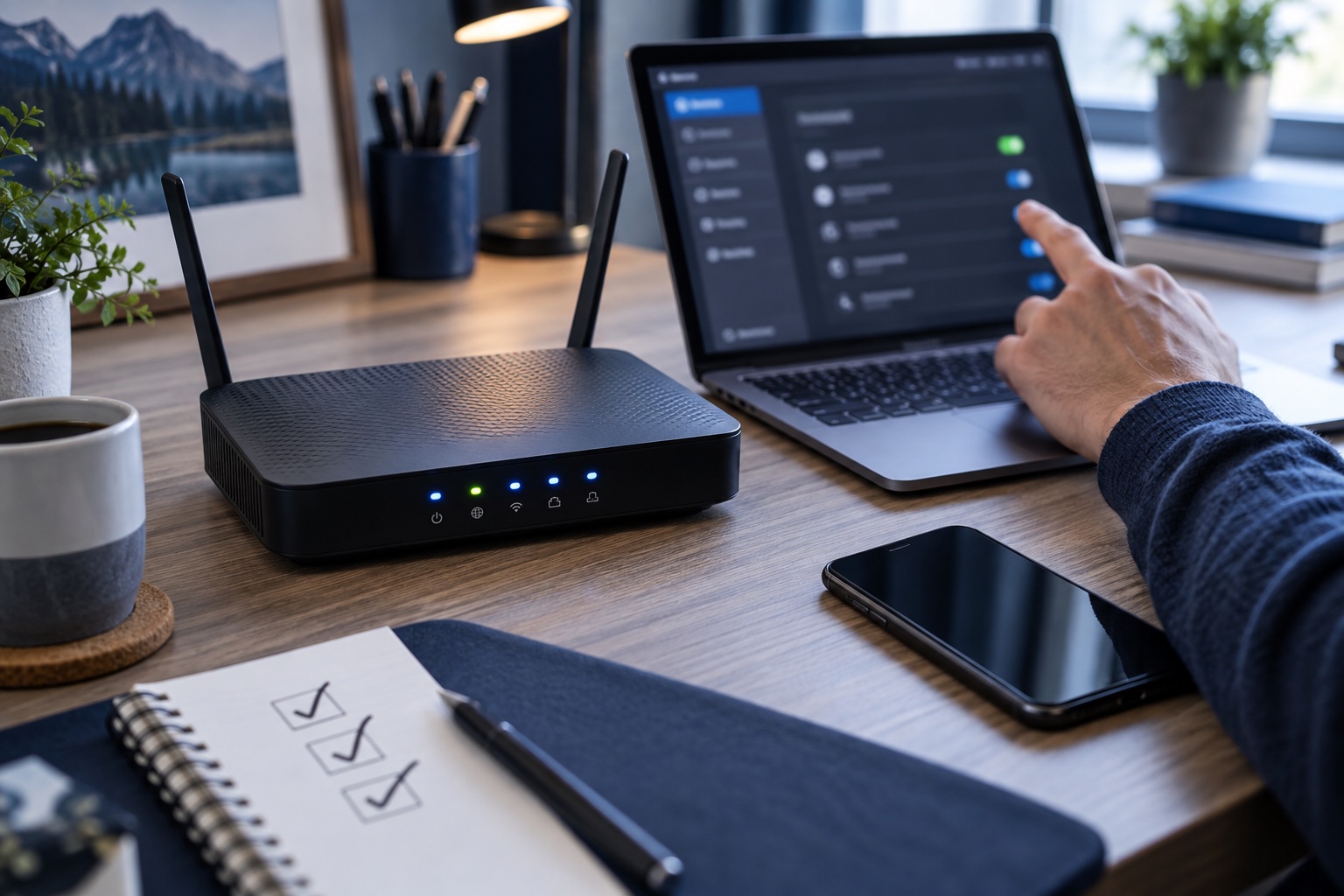
Start with the router's support status
Find the router model and manufacturer, then check whether it still receives security updates. Enable automatic firmware updates when the manufacturer supports them, or follow the official update process. A device that has reached end of support should be discussed with the internet provider or replaced rather than left indefinitely at the edge of the home network.
Australia's Cyber Security Centre recommends checking a router's end-of-life status, firmware and connected-device list as part of a recurring health check. The interval is a practical prompt, not a substitute for installing urgent updates when they are released.
Separate the administrator login from the Wi-Fi password
The password used to change router settings is different from the password used to join Wi-Fi. Change any default administrator credential, use a unique strong passphrase and store it safely. Also replace a default network name if it exposes the household, address or router model.
Use WPA3 when all required devices support it, or WPA2 if that is the secure option available. Avoid obsolete WEP security. The FTC also recommends enabling encryption and checking for router updates as core home-network protections.
Turn off access you do not need
Remote management can expose the router's settings interface beyond the home. Disable it unless there is a clear reason to use it and you understand how it is protected. Do not change advanced firewall, VPN or employer-managed settings simply because a generic checklist recommends it; follow the router manufacturer's and employer's instructions.
Review the connected-device list for phones, computers, televisions and smart devices you recognise. A guest network can keep visitors and less-trusted devices away from the network used by work equipment, if the router supports reliable separation.
Follow the employer's remote-access policy
Use the approved VPN, work profile or managed device exactly as instructed. A VPN does not repair an unsupported router or remove malware from another device, and a secure router does not replace multi-factor authentication and device updates. These controls protect different parts of the connection.
Report unusual login prompts, repeated disconnections, unknown certificates or unexpected instructions to install network software through the employer's verified support route. Do not let an unverified recruiter or caller change router settings or remotely control your computer.
Check an unexpected remote-access request →Secure your job-search email account →
Use this home-network check
- Identify the router model, support status and official update instructions.
- Enable automatic firmware updates when available and install pending security updates.
- Replace default administrator credentials with a unique strong passphrase.
- Use WPA3 or WPA2 encryption with a separate strong Wi-Fi password.
- Disable internet-facing remote management unless it is genuinely required and securely configured.
- Review connected devices and use a guest network where useful.
- Use the employer's approved VPN, device and support route without bypassing security controls.
Build reliable remote-work habits →Browse current checked roles →
Follow RemoRoute
Choose the updates that suit you.
Use Telegram for fast role updates and LinkedIn for research, practical articles and selected opportunities.