
REMOTE WORK
Remote-work ergonomics: a practical home workstation checklist
A home workstation does not need to look like a showroom. It needs to let you work in a supported position, change posture and address discomfort before a temporary setup becomes a daily problem.
Assess the work you actually do at home
Start with duration and frequency. A sofa or kitchen counter used briefly is different from a workstation used for concentrated computer work every day. Record which devices you use, how long the sessions last, whether the same setup is shared and which tasks make you lean, reach, twist or strain to see the screen.
The UK Health and Safety Executive says its display-screen rules can apply to permanent and hybrid home workers who use display-screen equipment daily for continuous periods of an hour or more. The legal duties depend on the jurisdiction and employment arrangement, but the assessment questions are useful anywhere.
Build a neutral starting position, then keep moving
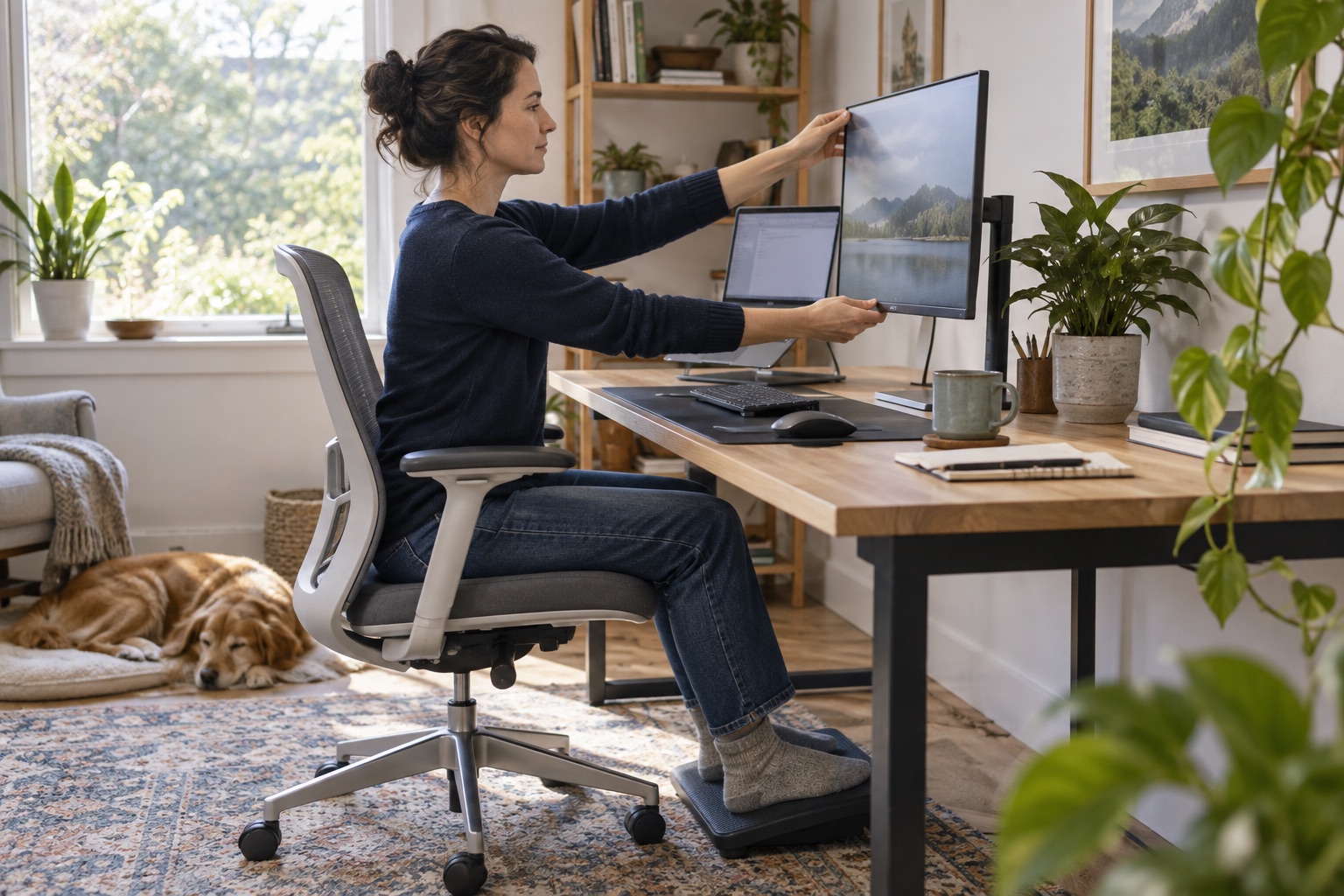
Place the main screen directly in front of you at a comfortable viewing distance, with the top of the display at or below eye level. Support the back, keep shoulders relaxed, bring elbows close to the body and support the feet on the floor or a stable footrest. Keep the keyboard and pointing device close enough that you do not repeatedly reach.
No single posture is healthy all day. OSHA advises changing position frequently, making small chair adjustments, stretching and periodically standing or walking. Breaks or changes of activity should interrupt long periods of still computer work rather than relying on one supposedly perfect pose.
Treat a laptop as a system, not the whole workstation
A laptop screen and keyboard are physically connected, so raising the screen can make the keyboard too high and using the keyboard at a comfortable height can pull the head down. For sustained work, consider a stable laptop stand or external monitor together with a separate keyboard and pointing device.
Use the primary screen directly in front of you and keep frequently used equipment within easy reach. Clear enough space under the desk for the legs and chair to move. Temporary travel or café use should be shorter and include more frequent position changes.
Check lighting, glare and the support route
Position the display to reduce glare from windows and lamps, then adjust brightness and contrast for comfort. Avoid fixing glare by twisting the body or leaning toward the screen. A change in desk direction, screen angle or diffuse lighting may solve the cause more effectively.
Report persistent pain, numbness, tingling, headaches or visual discomfort through the employer's health-and-safety, occupational-health or manager route instead of self-diagnosing from an online checklist. Ask how workstation assessments, accessibility needs and equipment requests are handled for remote workers. Seek qualified medical advice for health concerns.
Understand adjustment requests during hiring →Clarify remote equipment and support before day one →
Use this home-workstation review
- Record how many hours and which tasks you complete at the workstation.
- Place the primary screen directly ahead at a comfortable height and distance.
- Support the back and feet, relax the shoulders and keep elbows near the body.
- Keep the keyboard and mouse close, level and free from hard contact edges.
- Use a stand or external screen plus separate input devices for sustained laptop work.
- Reduce glare and make room to change position throughout the day.
- Reassess after equipment, workload or location changes and report persistent discomfort.
Build clearer and more sustainable remote-work habits →Browse current checked roles →
Follow RemoRoute
Choose the updates that suit you.
Use Telegram for fast role updates and LinkedIn for research, practical articles and selected opportunities.